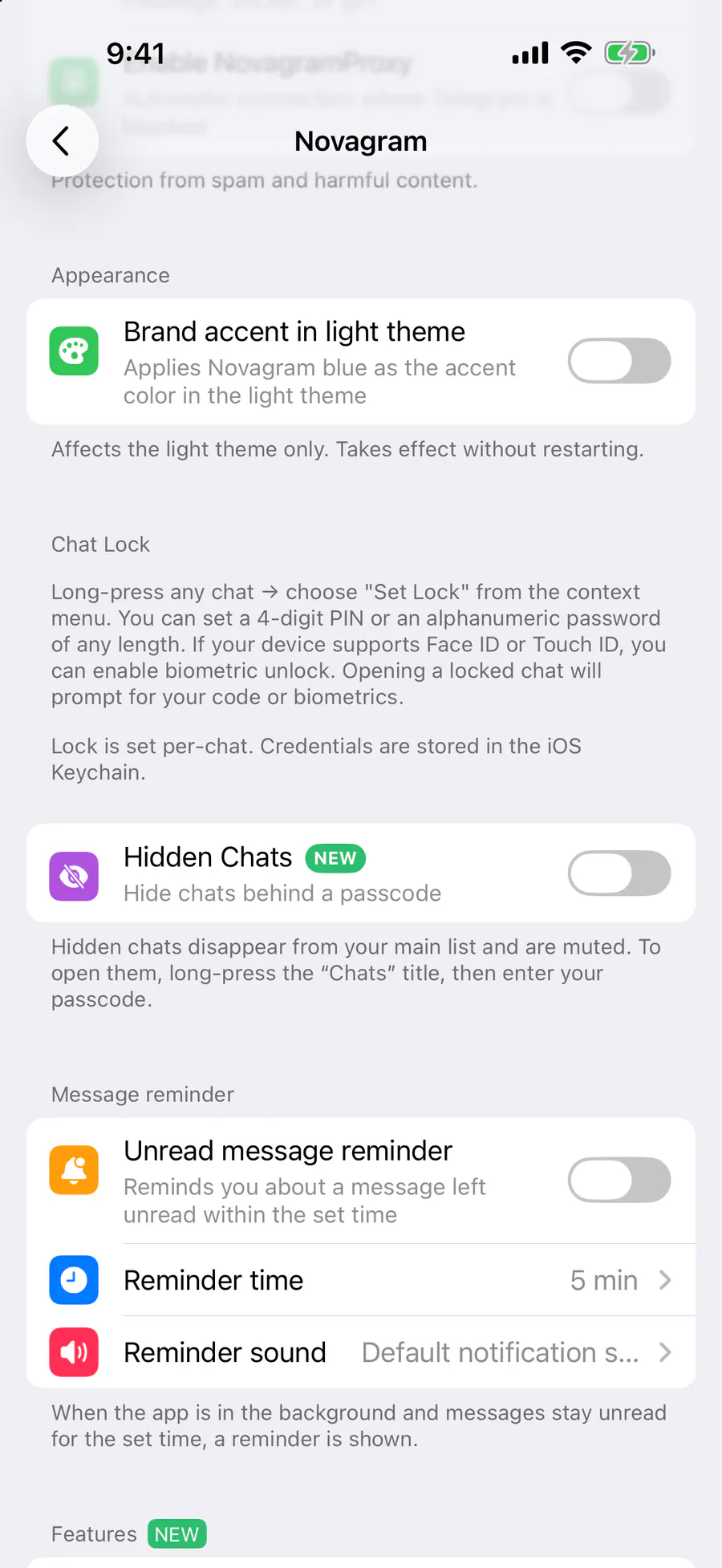
Hidden Chats
Hide chats completely
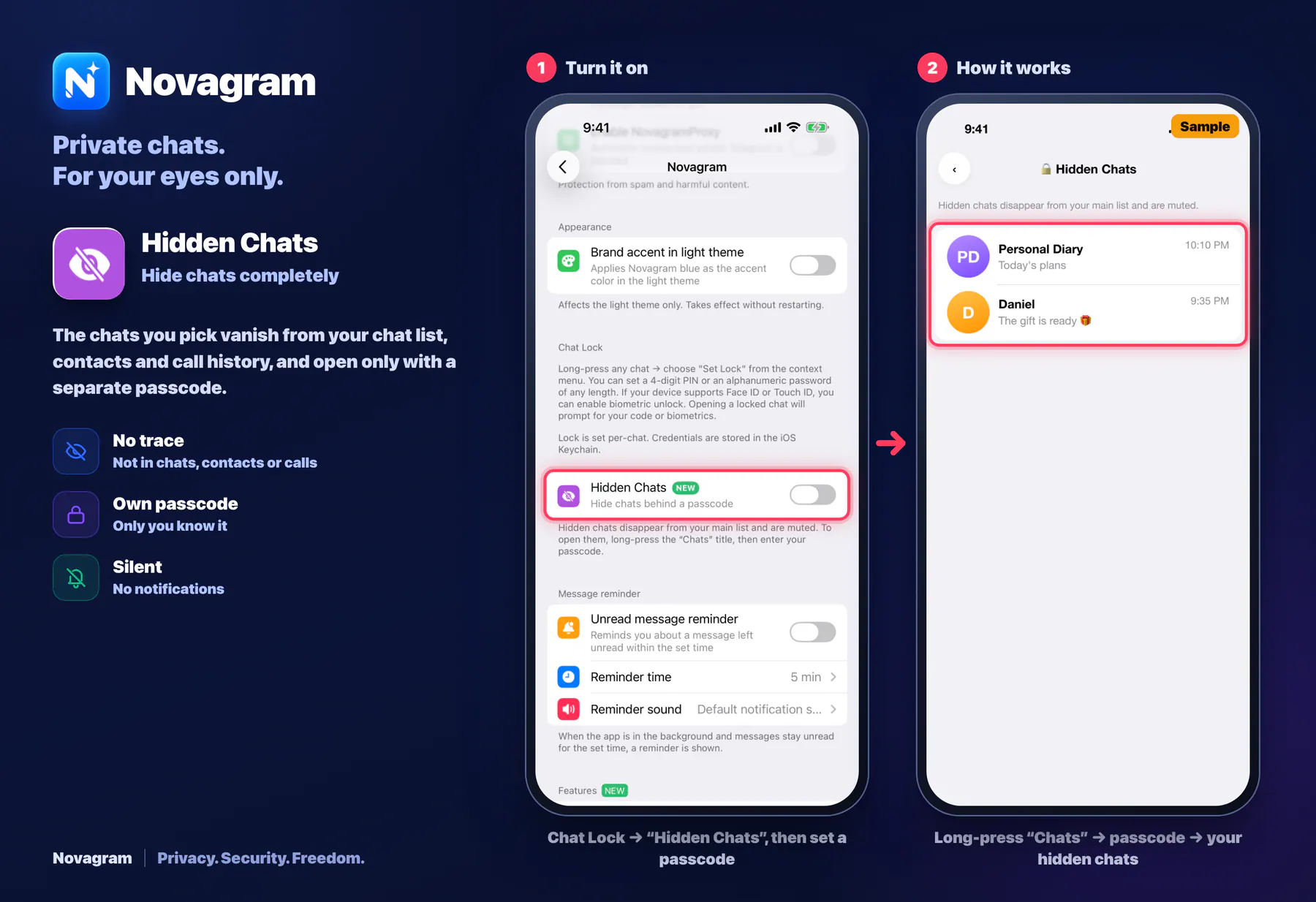
The chats you pick vanish from your chat list, contacts and call history, and open only with a separate passcode.
Opens this setting on a phone with Novagram installed
How it looks in the app
Step by step: the red frame shows where to tap.
Chat Lock → “Hidden Chats”, then set a passcode
Benefits
No trace
Not in chats, contacts or calls
Own passcode
Only you know it
Silent
No notifications
How to turn it on
Tap “Settings” at the bottom of the screen.
Tap the gold “Novagram Settings” row.
In the Chat Lock section, turn on “Hidden Chats” and set a passcode.
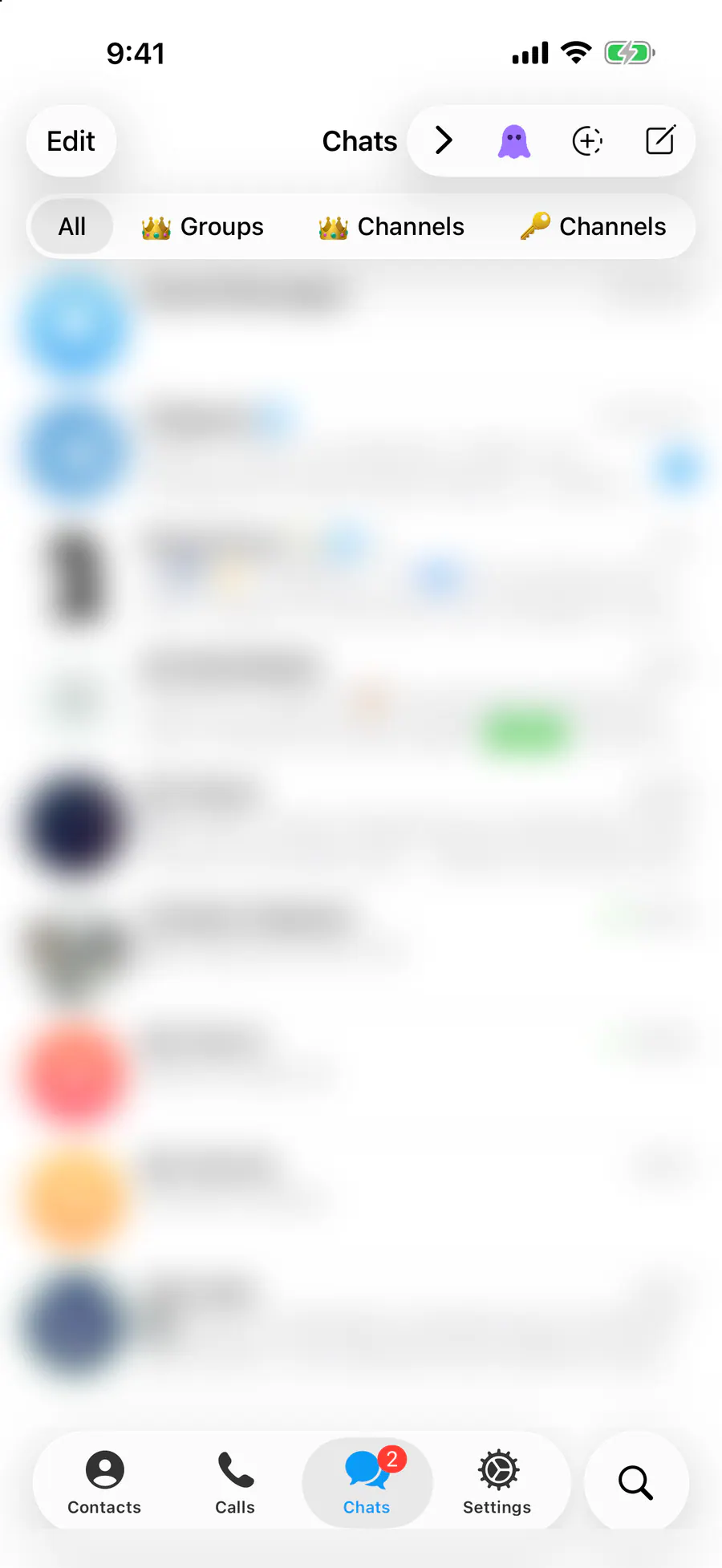
In your chat list, tap “Edit”, select chats, then tap “Hide” at the bottom.
To open hidden chats, press and hold the “Chats” title and enter your passcode.
Result
Hidden chats don't show up anywhere and open only with your passcode.
Steps in screenshots
Each screenshot marks the right spot with a red frame. Tap to enlarge.
Card to share
A ready-made image to explain the feature to your friends.