Edit and Send
Rewrite a post and send it as your own
Change the text of a post from another channel and send it as a new post, with no “Forwarded from” or “edited” label.
How it looks in the app
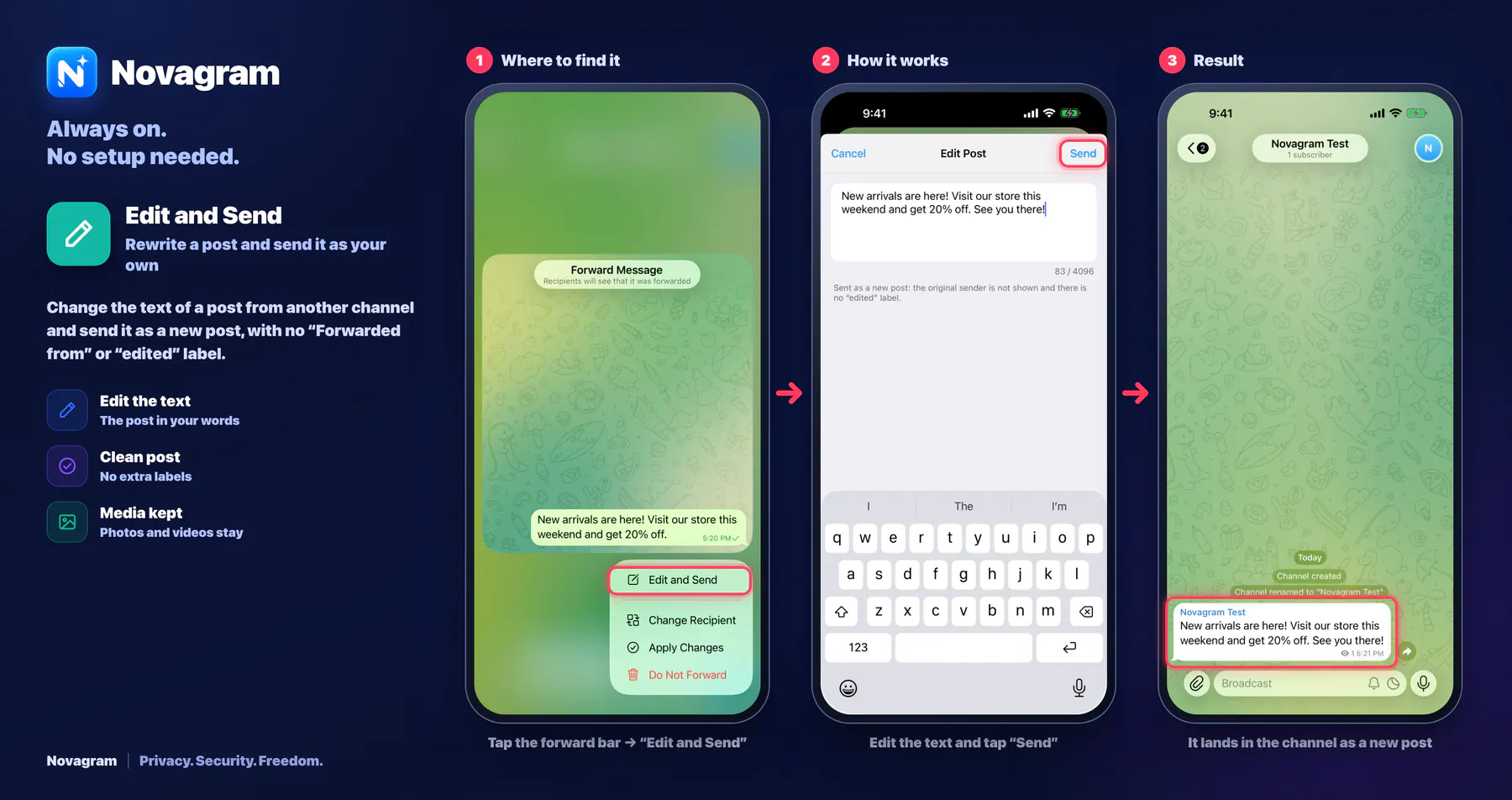
Step by step: the red frame shows where to tap.
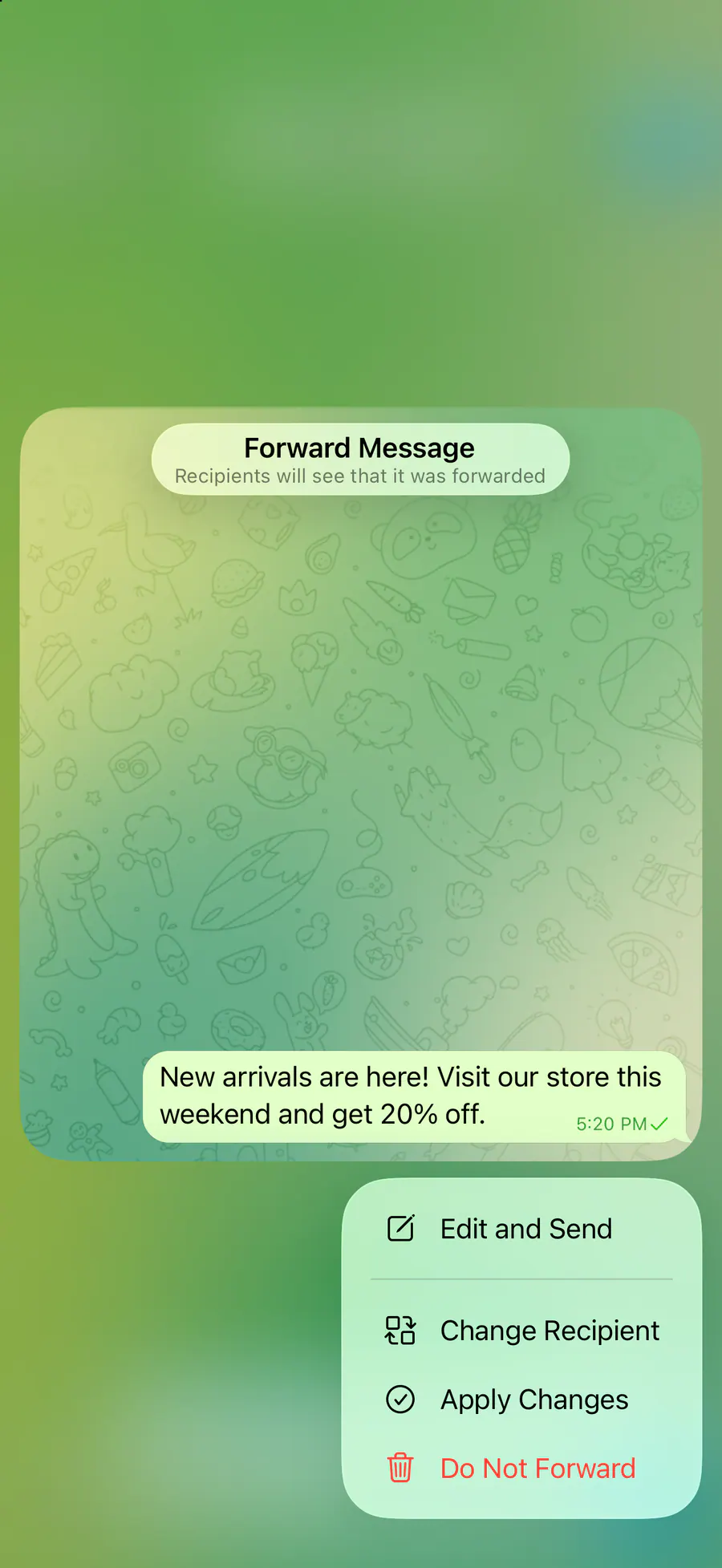
Tap the forward bar → “Edit and Send”
Benefits
Edit the text
The post in your words
Clean post
No extra labels
Media kept
Photos and videos stay
How to turn it on
Press and hold the post and tap “Forward”.
Choose the chat to send it to. (A post sent to “Saved Messages” is forwarded right away and can't be edited there.)
Tap the “Forward Message” bar above the message field.
Choose “Edit and Send”, change the text and send it.
Result
The post goes out as a new message, with no “Forwarded from” and no “edited” label.
Steps in screenshots
Each screenshot marks the right spot with a red frame. Tap to enlarge.
Card to share
A ready-made image to explain the feature to your friends.