Always-On Extras
Quick Account Switch
One press, another account
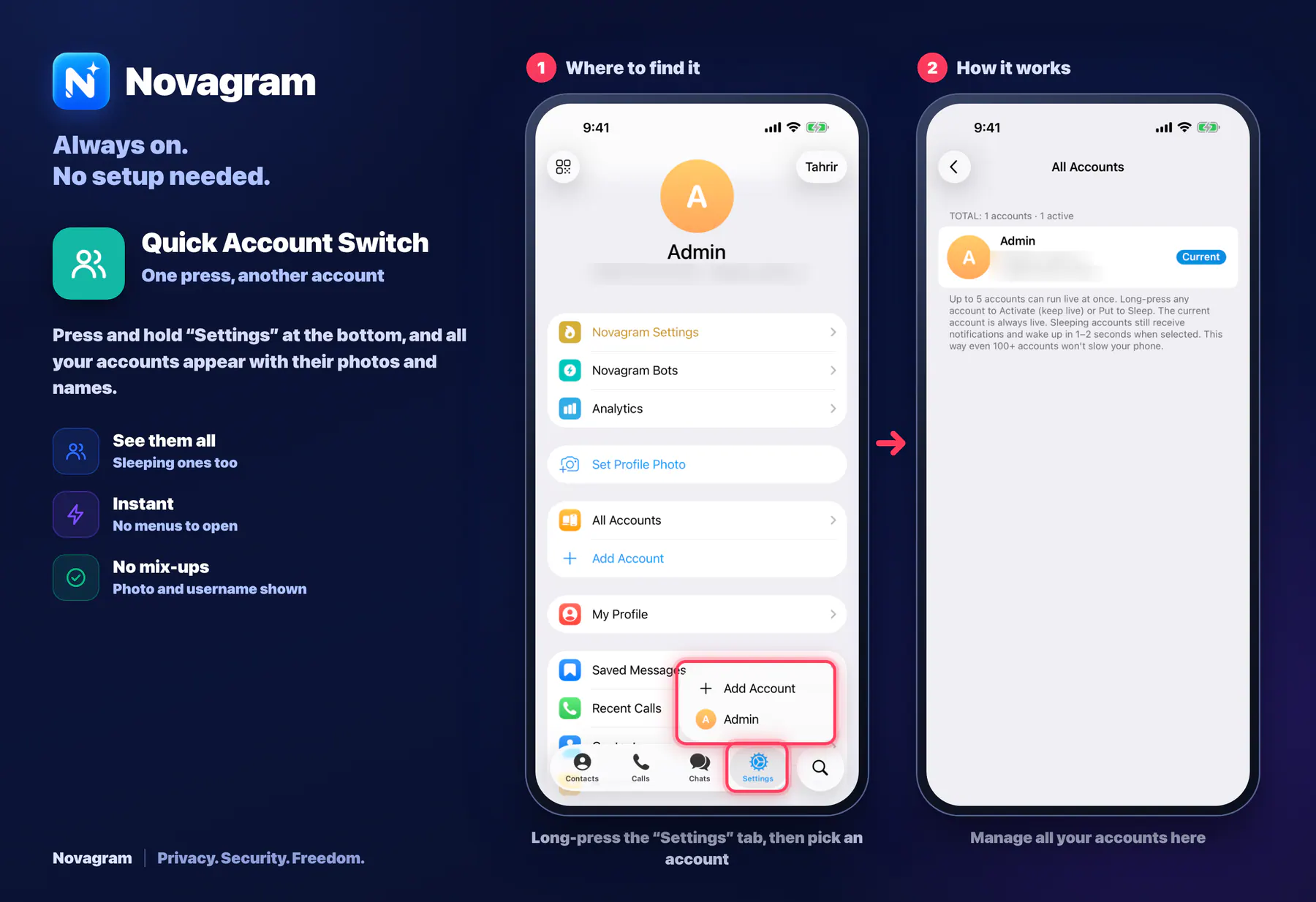
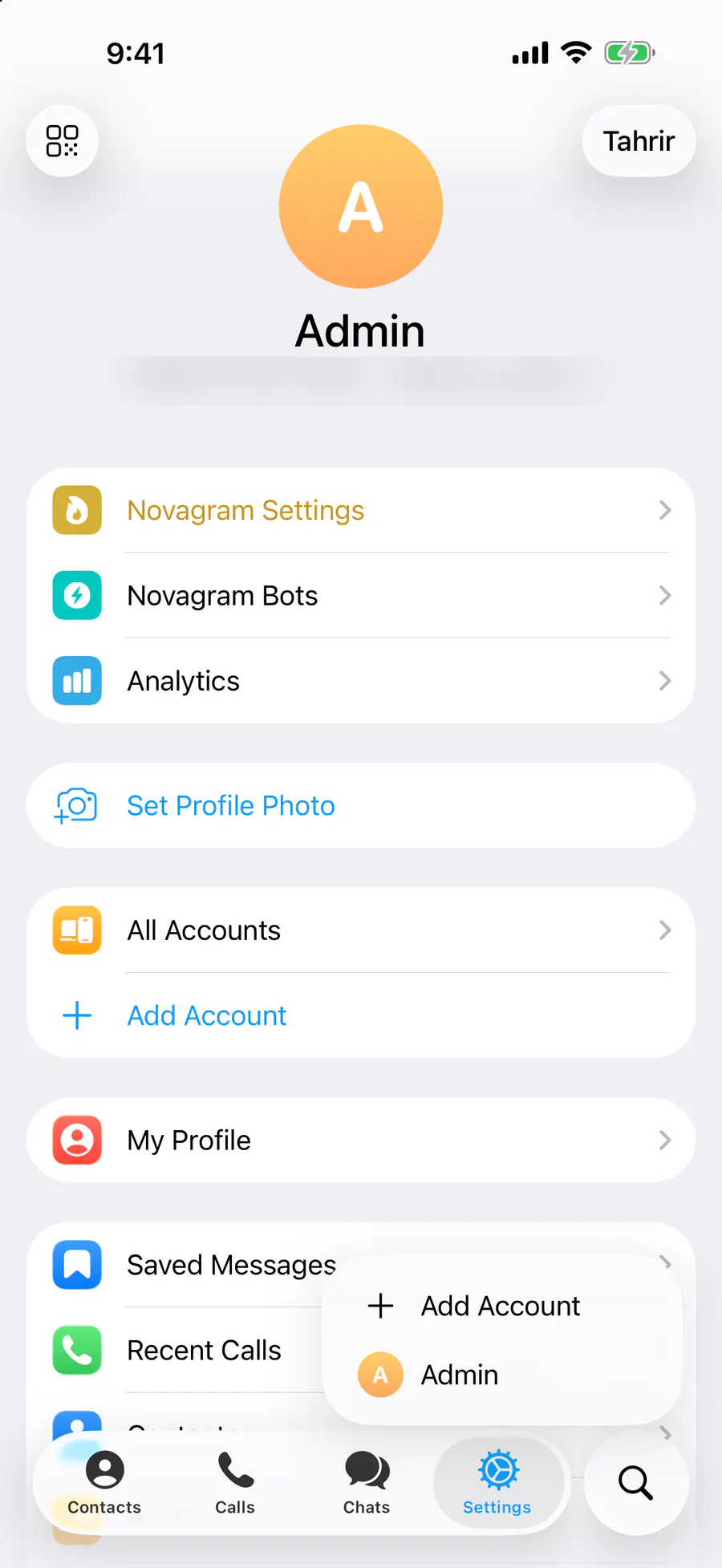
Press and hold “Settings” at the bottom, and all your accounts appear with their photos and names.
How it looks in the app
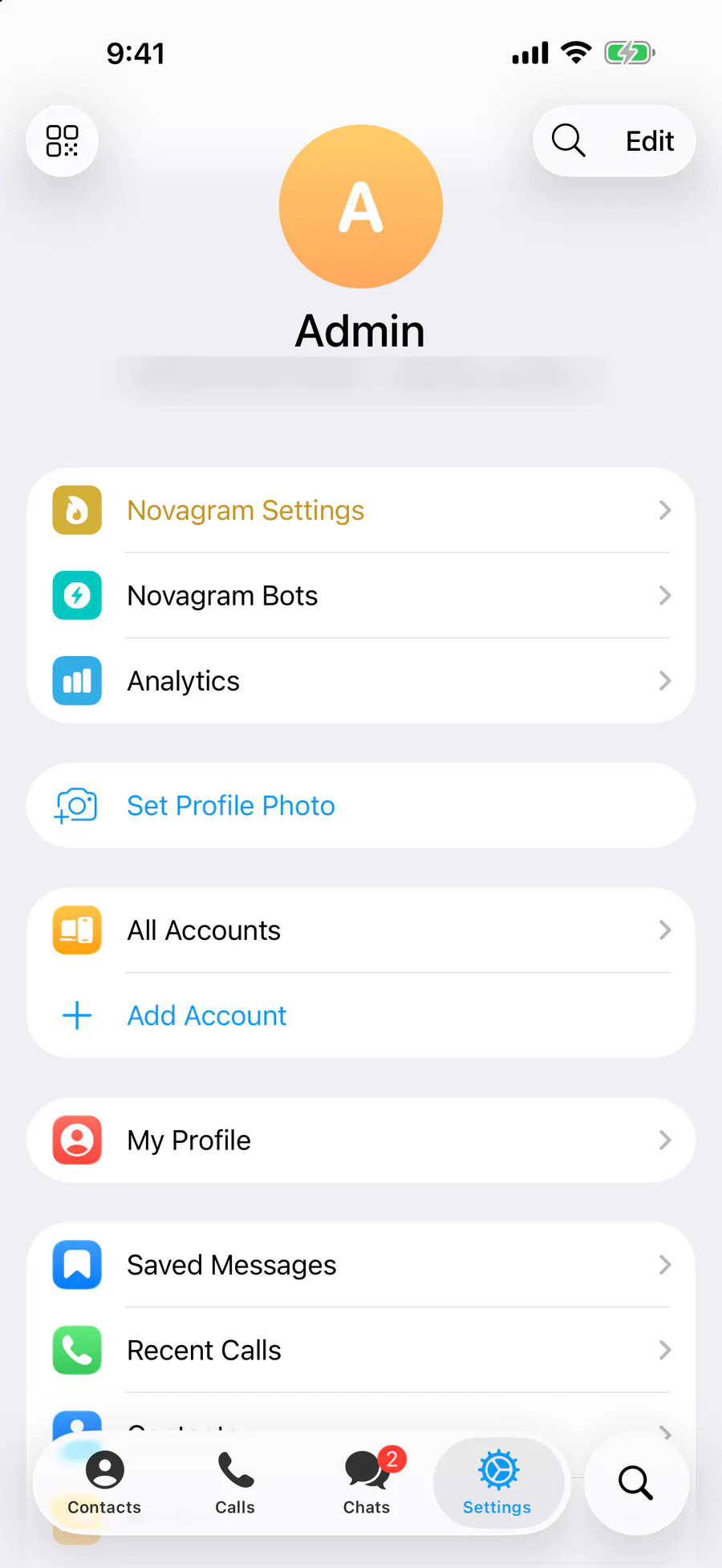
Step by step: the red frame shows where to tap.
Long-press the “Settings” tab, then pick an account
1 / 2
Benefits
See them all
Sleeping ones too
Instant
No menus to open
No mix-ups
Photo and username shown
How to turn it on
Press and hold “Settings” at the bottom of the screen.
Pick the account you want from the list.
Result
You switch to that account right away.
Steps in screenshots
Each screenshot marks the right spot with a red frame. Tap to enlarge.
Card to share
A ready-made image to explain the feature to your friends.
WebP, 1800×1234Download the card