Messages
Ask to Translate on Send
Translation or original? Your call
When you tap send, you choose whether the message goes out translated or as you wrote it.
Opens this setting on a phone with Novagram installed
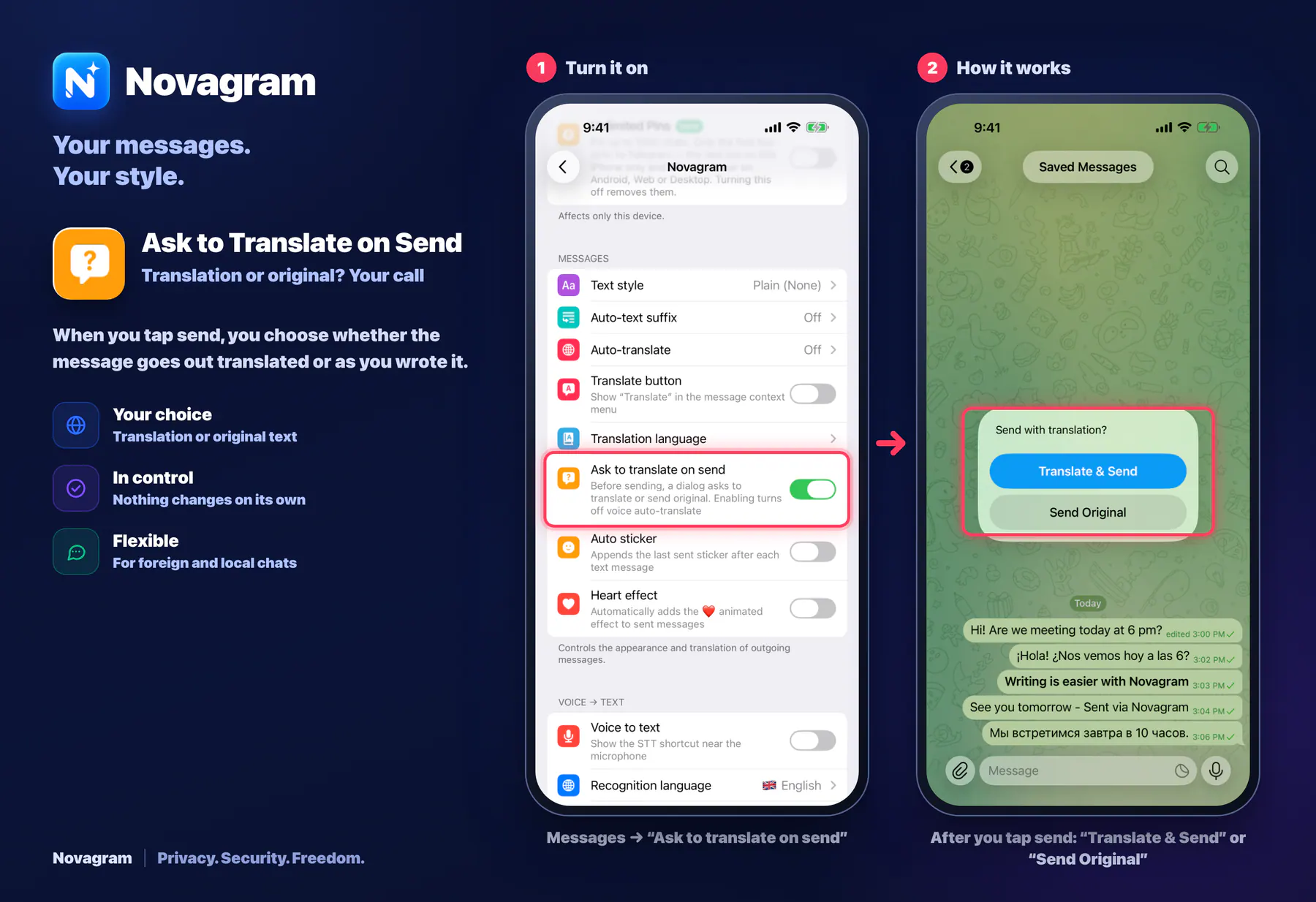
How it looks in the app
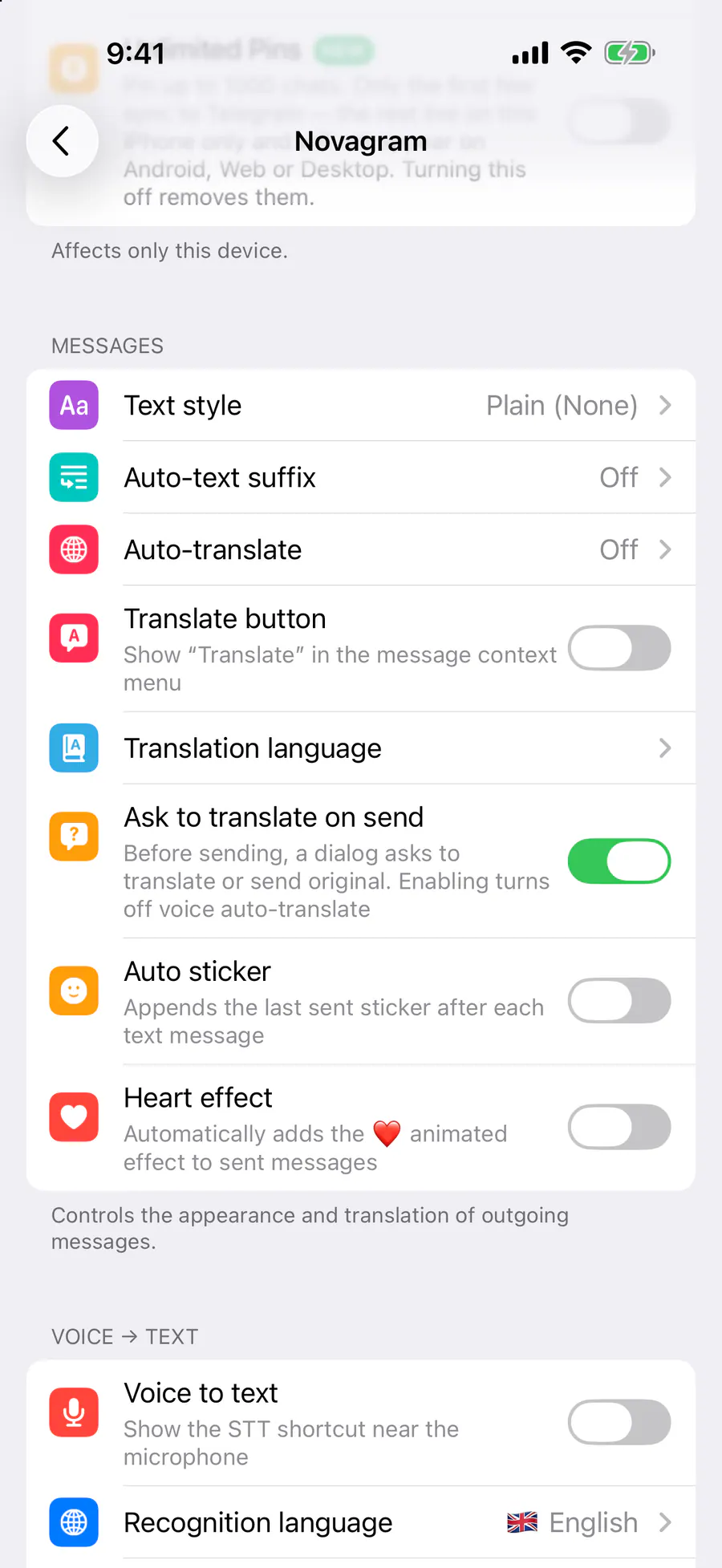
Step by step: the red frame shows where to tap.
Messages → “Ask to translate on send”
1 / 2
Benefits
Your choice
Translation or original text
In control
Nothing changes on its own
Flexible
For foreign and local chats
How to turn it on
Tap “Settings” at the bottom of the screen.
Tap the gold “Novagram Settings” row.
In the Messages section, turn on “Ask to translate on send”.
Result
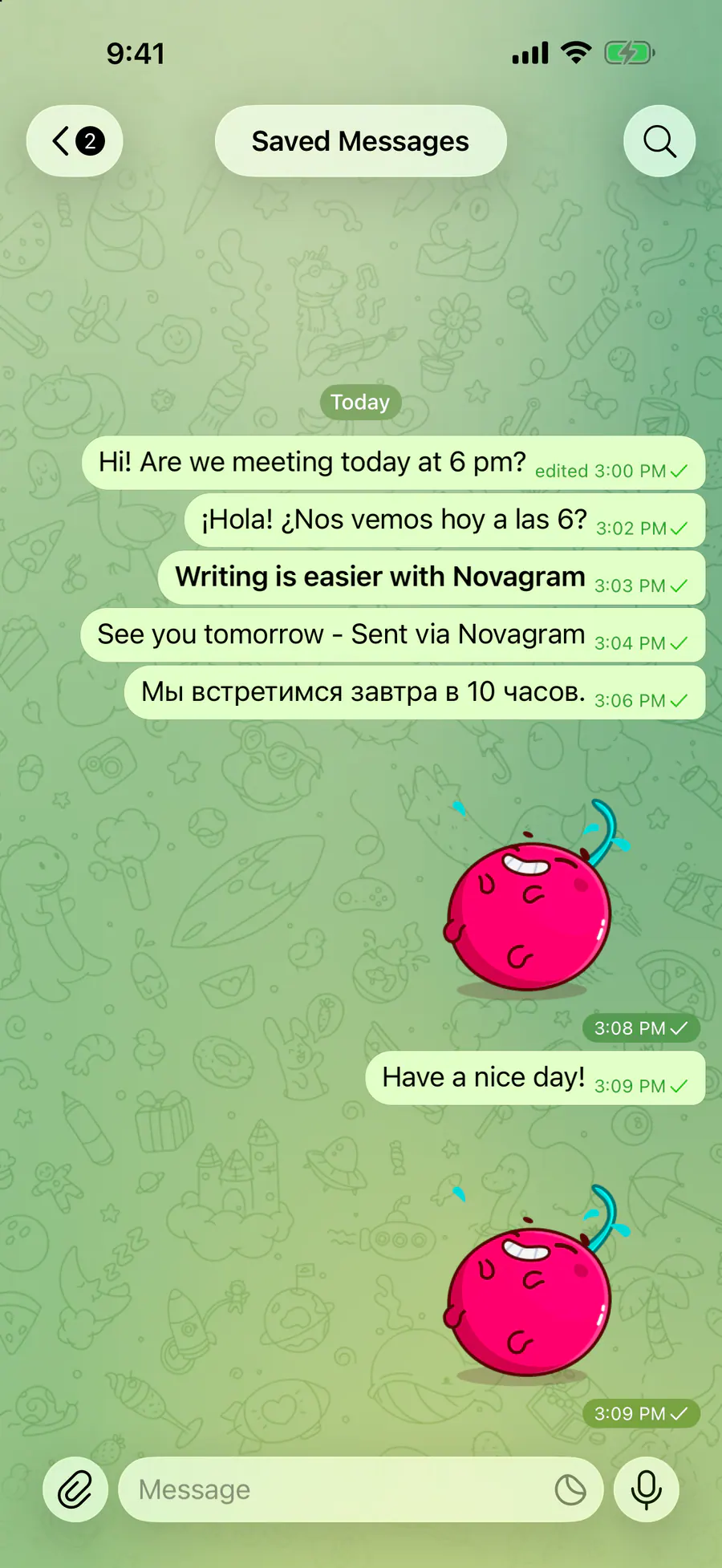
When you send, you choose “Translate & Send” or “Send Original”.
Steps in screenshots
Each screenshot marks the right spot with a red frame. Tap to enlarge.
Card to share
A ready-made image to explain the feature to your friends.
WebP, 1800×1234Download the card