Login
QR Code Login
Scan once, skip the SMS
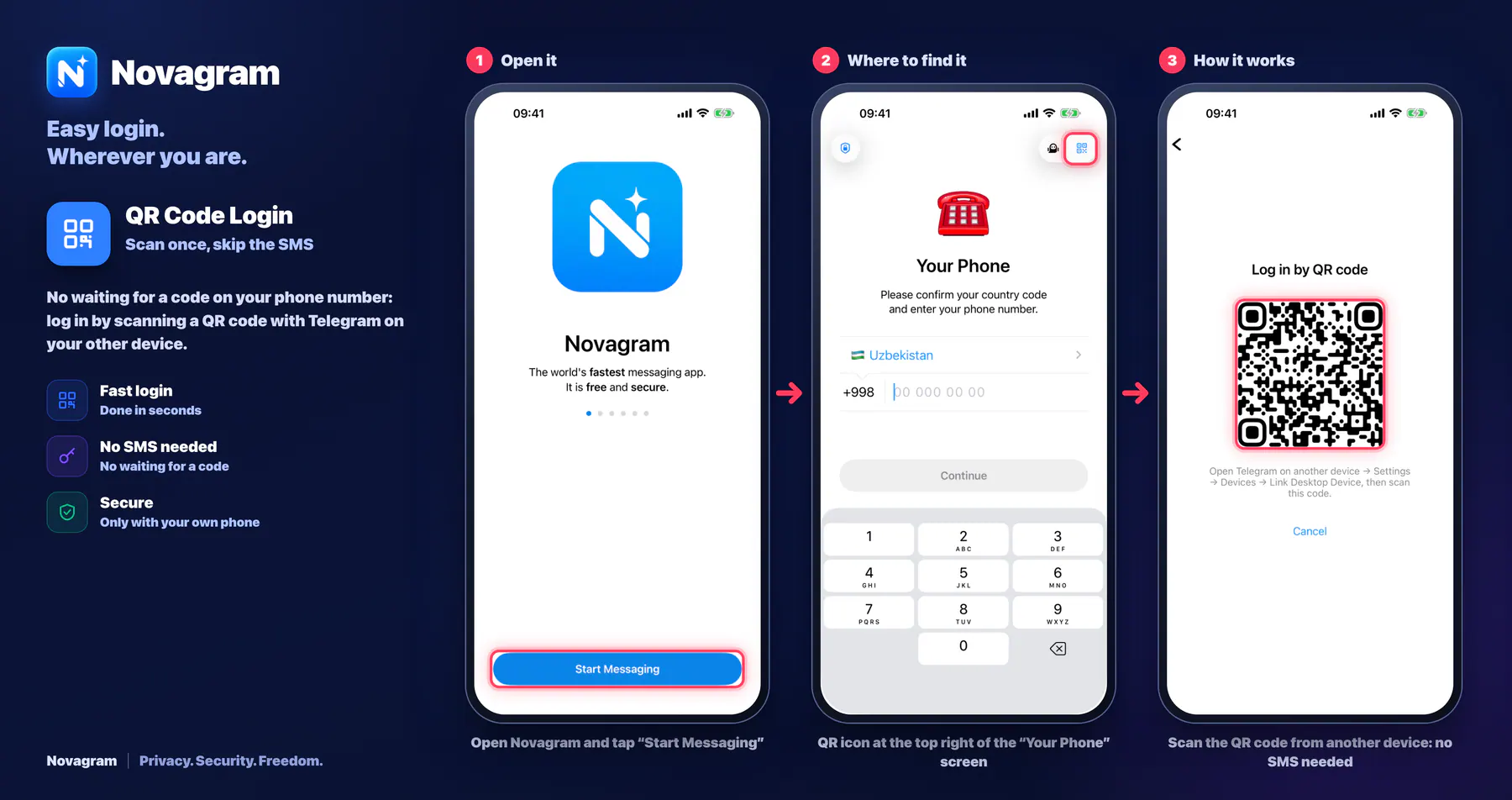
No waiting for a code on your phone number: log in by scanning a QR code with Telegram on your other device.
How it looks in the app
Step by step: the red frame shows where to tap.
Open Novagram and tap “Start Messaging”
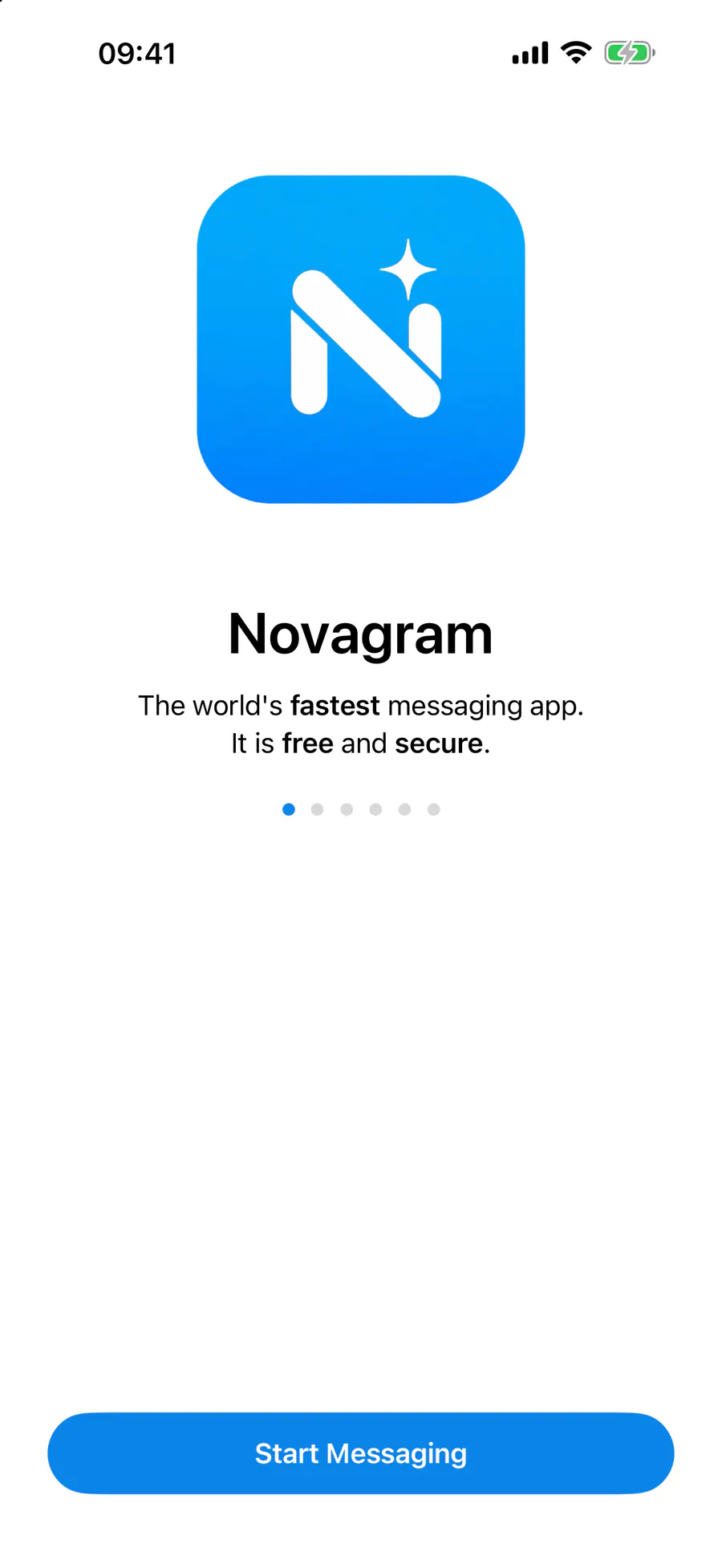
1 / 3
Benefits
Fast login
Done in seconds
No SMS needed
No waiting for a code
Secure
Only with your own phone
How to turn it on
Open Novagram and tap “Start Messaging”.
On the “Your Phone” screen, tap the QR icon at the top right.
The “Log in by QR code” screen shows a QR code.
On your other phone, open Telegram, go to Settings → Devices → “Link Desktop Device” and scan this QR code.
Result
You're logged in right away, no SMS code needed.
Steps in screenshots
Each screenshot marks the right spot with a red frame. Tap to enlarge.
Card to share
A ready-made image to explain the feature to your friends.
WebP, 1800×952Download the card