Voice to Text
Speak, and the text writes itself
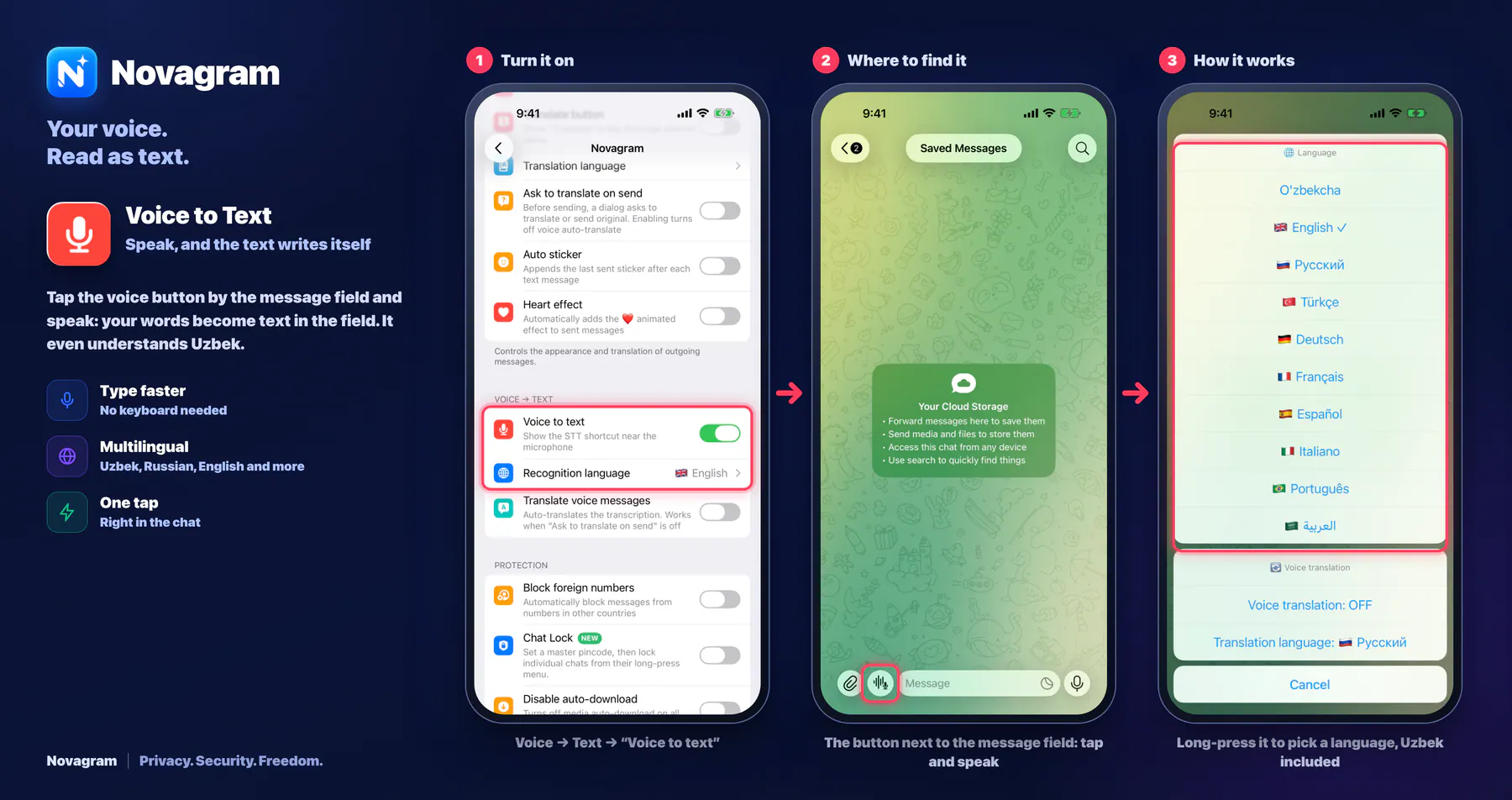
Tap the voice button by the message field and speak: your words become text in the field. It even understands Uzbek.
Opens this setting on a phone with Novagram installed
How it looks in the app
Step by step: the red frame shows where to tap.
Voice → Text → “Voice to text”
Benefits
Type faster
No keyboard needed
Multilingual
Uzbek, Russian, English and more
One tap
Right in the chat
How to turn it on
Tap “Settings” at the bottom of the screen.
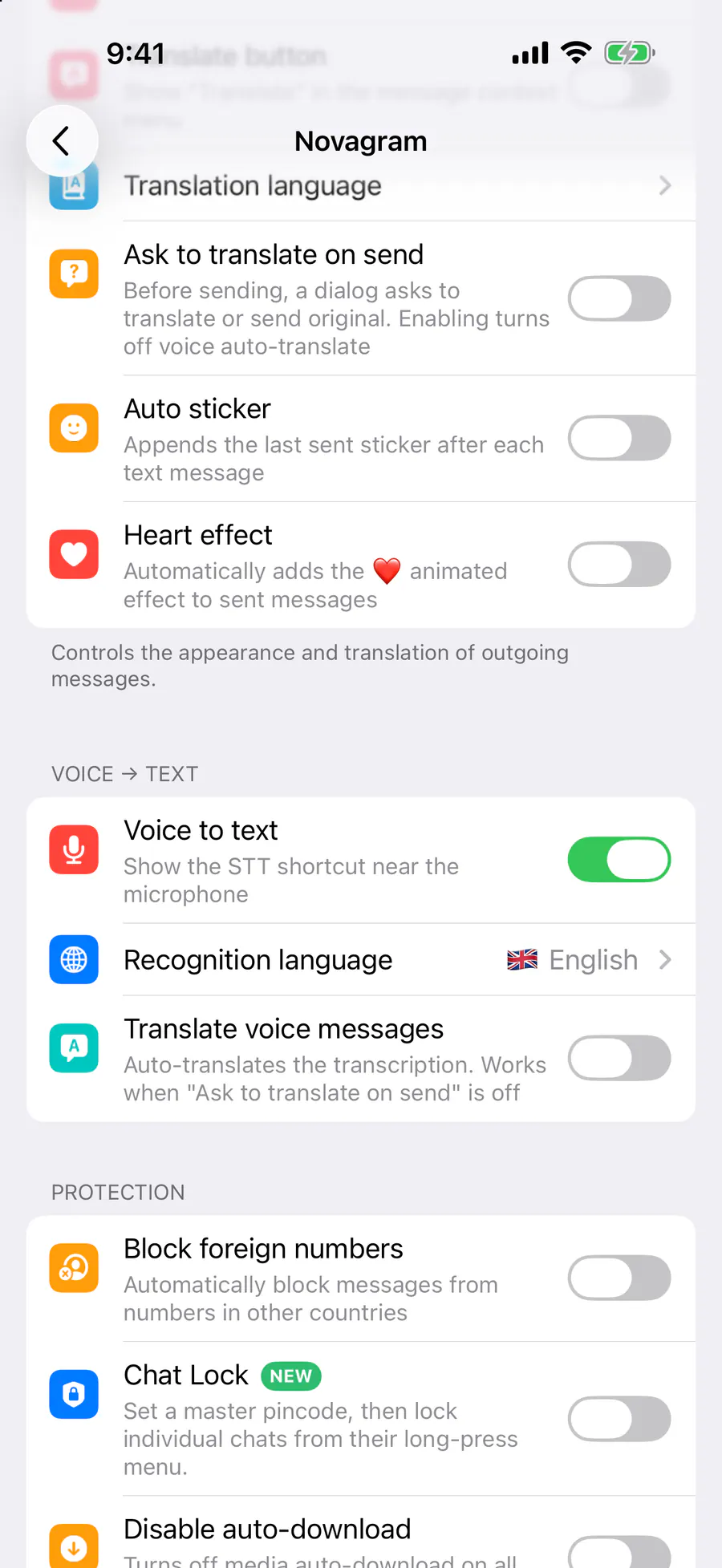
Tap the gold “Novagram Settings” row.
In the Voice → Text section, turn on “Voice to text”.
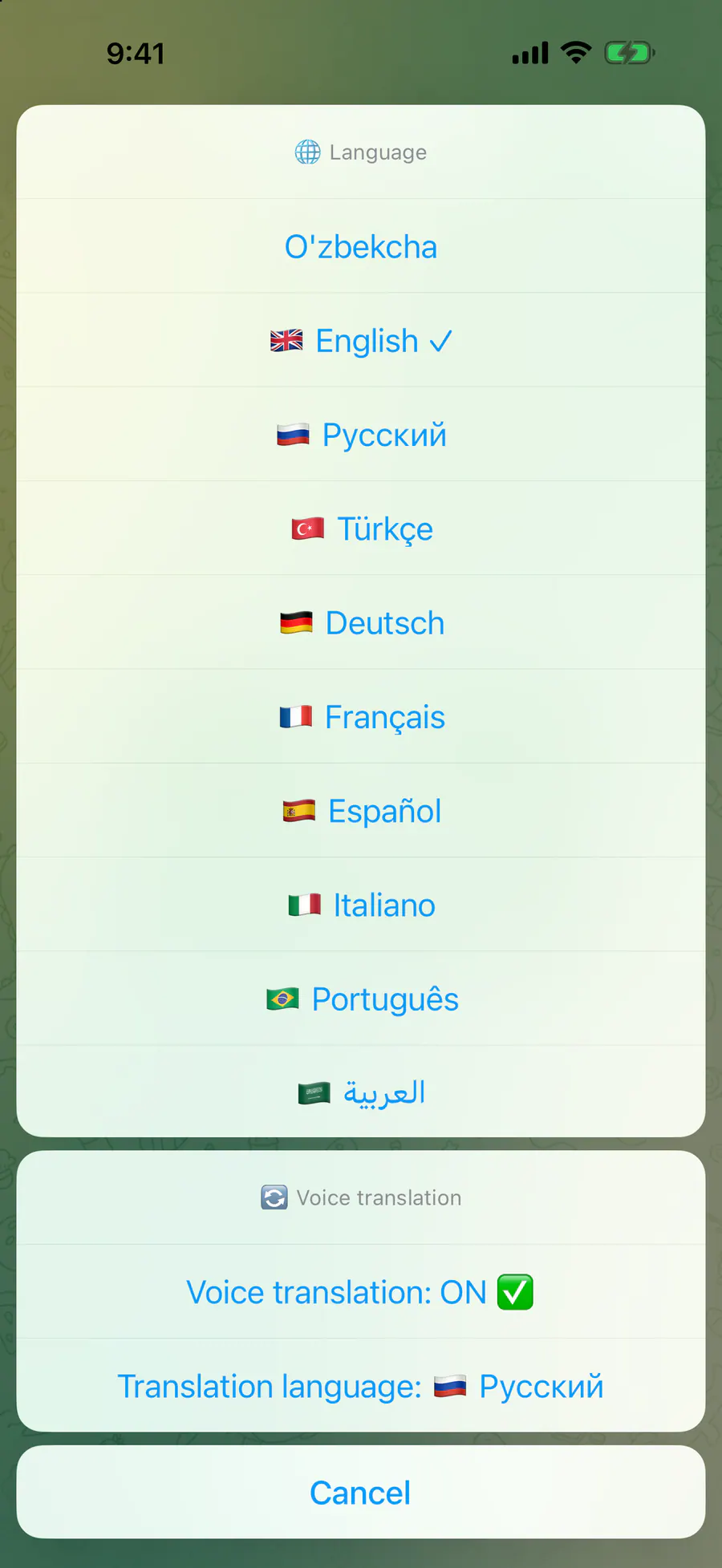
Pick a language in “Recognition language”.
In a chat, tap the voice button next to the message field and speak.
Result
What you say is written out as text. Check it and send.
Steps in screenshots
Each screenshot marks the right spot with a red frame. Tap to enlarge.
Card to share
A ready-made image to explain the feature to your friends.