Features
Folder Display Style
Folders as emoji or names
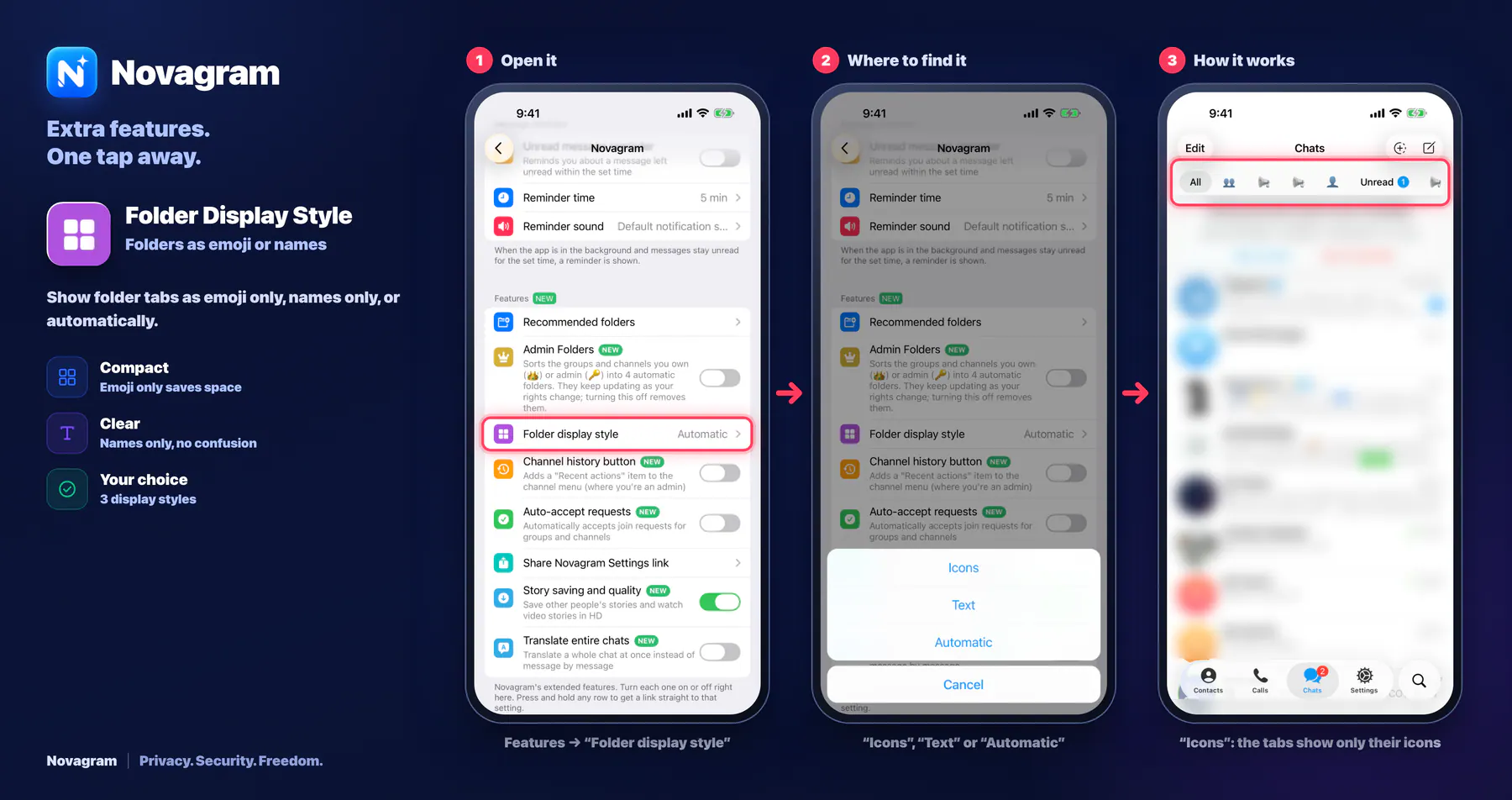
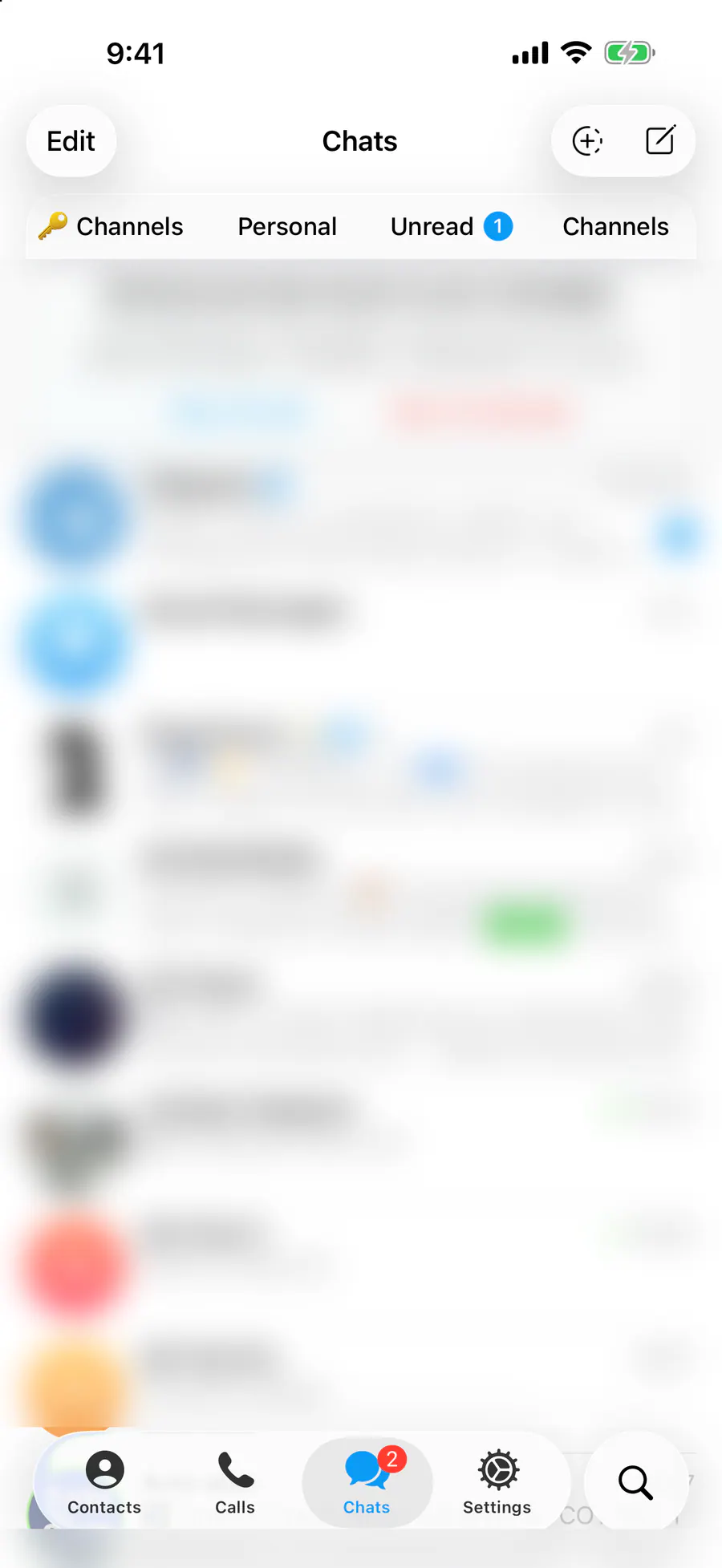
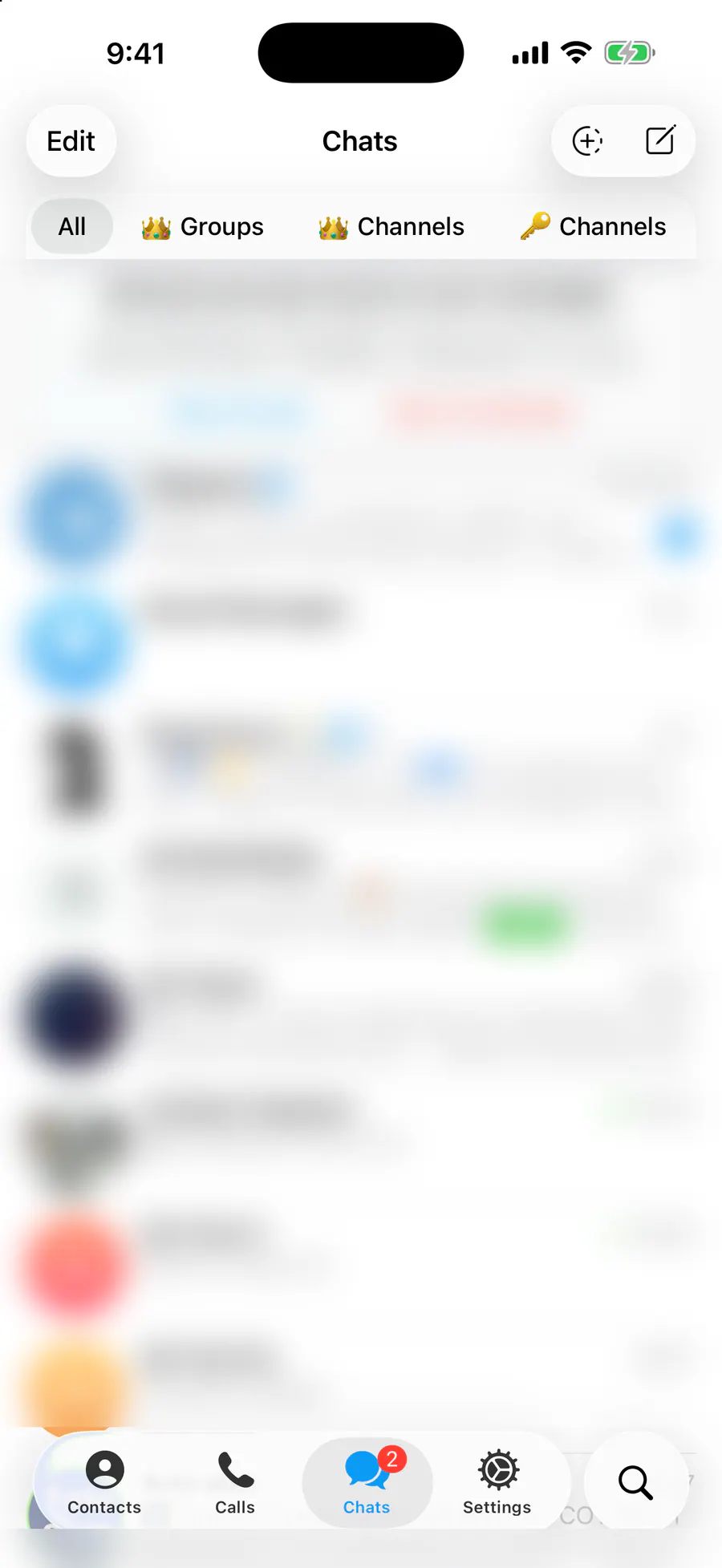
Show folder tabs as emoji only, names only, or automatically.
Opens this setting on a phone with Novagram installed
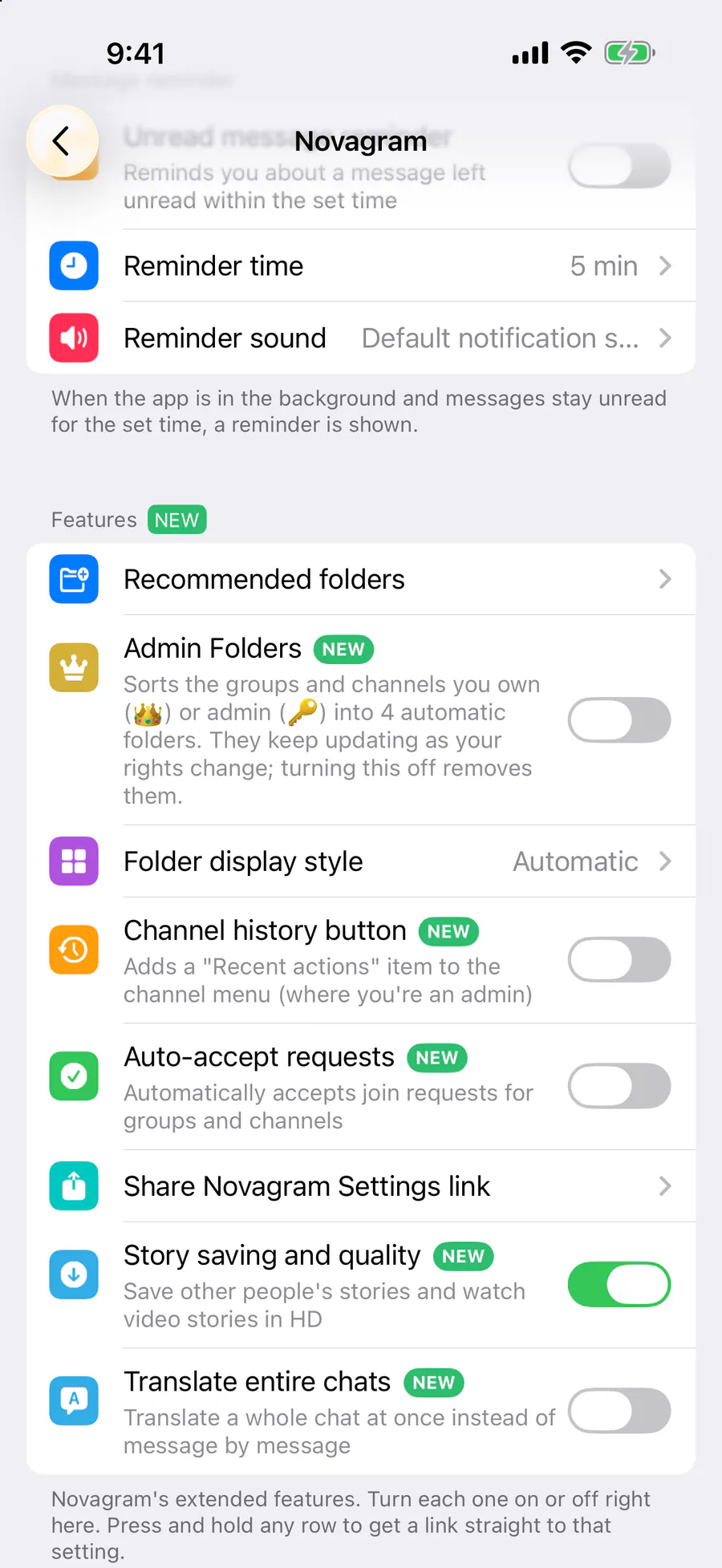
How it looks in the app
Step by step: the red frame shows where to tap.
Features → “Folder display style”
1 / 3
Benefits
Compact
Emoji only saves space
Clear
Names only, no confusion
Your choice
3 display styles
How to turn it on
Tap “Settings” at the bottom of the screen.
Tap the gold “Novagram Settings” row.
In the Features section, tap “Folder display style” and choose a style.
Result
The folders above your chats show in the style you chose.
Steps in screenshots
Each screenshot marks the right spot with a red frame. Tap to enlarge.
Card to share
A ready-made image to explain the feature to your friends.
WebP, 1800×952Download the card